
Store Submission
IPA vs APK vs AAB: Which File to Upload and How (2026)
What IPA, APK, and AAB files actually are, which store takes which in 2026 — including the Xcode 26 mandate, API 36 deadline, Amazon's Android exit — and the signing model behind each.
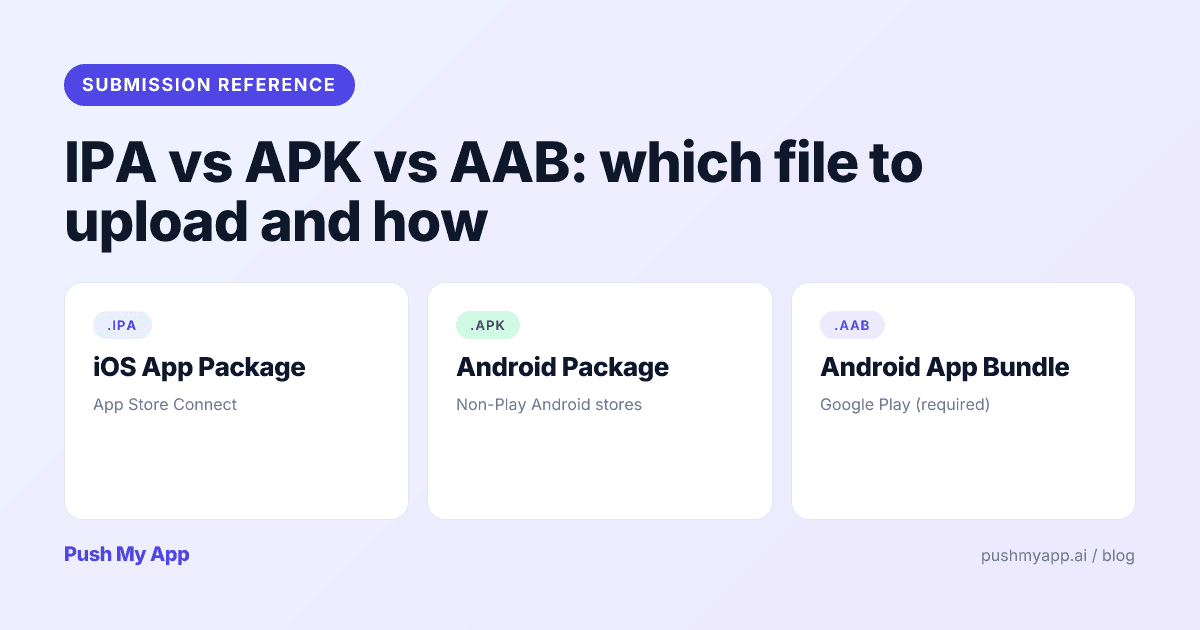
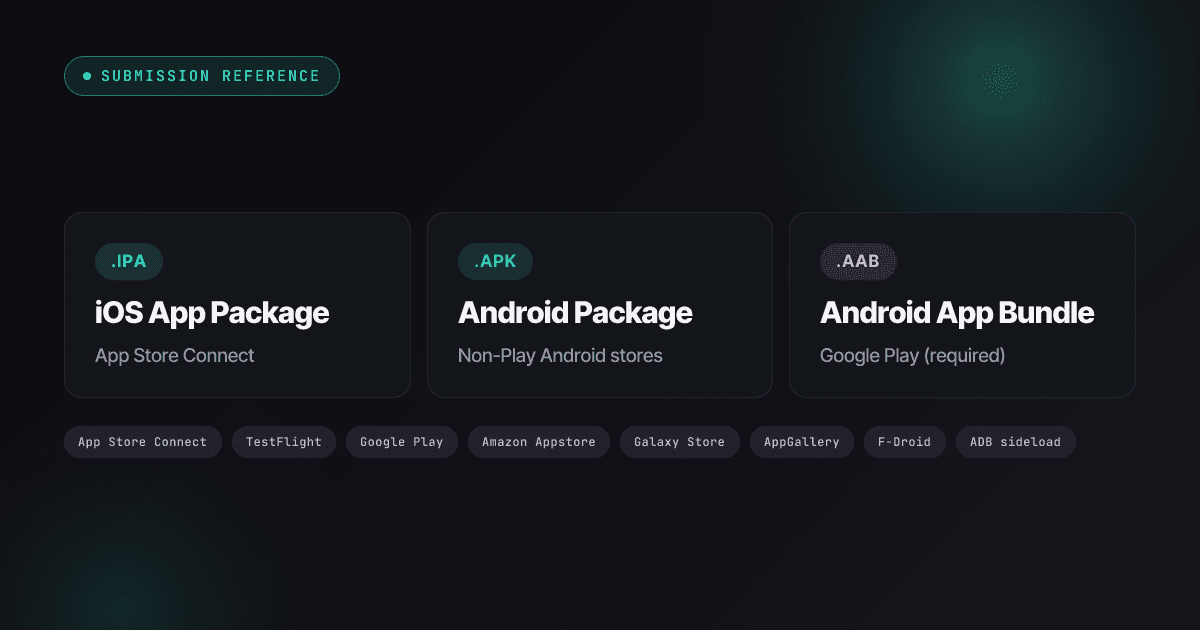
Three file extensions, three completely different contracts: what’s inside the archive, which store will take it, what key signs it, and what happens when that key is lost. Most developers learn the differences the expensive way — a bounced upload the night of a planned release.
This is the 2026 version of the answer, and 2026 specifics matter: since April 28, App Store Connect only accepts builds made with Xcode 26 and the iOS 26 SDK; Google Play’s target API floor steps up to 36 on August 31; and Amazon’s Appstore for Android — long the default “second Android store” — shut down for non-Fire devices in August 2025. Guides written even a year ago now point at closed doors.
Jump to the decision tree if you just need today’s answer; read the upload and signing sections if you’re wiring CI. Once the binary question is settled, the pre-flight checklist covers everything else that bounces submissions.
Quick-answer decision table
| Artifact | Use it for | Accepted by | Built with |
|---|---|---|---|
.ipa | App Store release, TestFlight, Ad Hoc, Enterprise, EU alternative distribution | App Store Connect; notarized EU marketplaces | Xcode 26 Archive → Organizer, or CI via App Store Connect API |
.apk | Sideloading, ADB installs, non-Play stores | Samsung Galaxy Store, Huawei AppGallery, F-Droid, Fire devices, direct distribution. Not Play (new apps). | Gradle assembleRelease |
.aab | Google Play — required for new apps since August 2021 | Google Play only | Gradle bundleRelease |
What is an IPA?
An iOS App Package: a ZIP archive wrapping your compiled .app bundle together with the provisioning profile, the code signature, and — since May 2024 — the PrivacyInfo.xcprivacy manifest if you touch any required-reason API. Apple’s distribution model ties every IPA to a Developer Program identity, which is why nothing else accepts the format.
The 2026 build requirement. Since April 28, 2026, App Store Connect refuses uploads built with anything older than Xcode 26 and the iOS 26 SDK. Your deployment target can still reach back years; the toolchain cannot. If CI pins an old Xcode image, this is the wall it hits.
Building one: Product → Archive in Xcode with Any iOS Device selected, then Distribute App from the Organizer. CI pipelines use xcodebuild -exportArchive with an export-options plist and authenticate uploads with an App Store Connect API key — the same key fastlane’s pilot and deliver ride on.
One newer wrinkle: in the EU, the same IPA can also ship through alternative marketplaces or your own website under the DMA rules — it passes Apple notarization rather than full App Review, but it’s still a signed IPA from the same pipeline.
What is an APK?
An Android Package: DEX bytecode, compiled resources, the manifest, and a signature in one ZIP that any Android device can install directly. It remains the universal install format — just no longer the universal publishing format.
Where APKs still matter in 2026:
- Sideloading and device testing:
adb install -r your.apk. - Samsung Galaxy Store, Huawei AppGallery, F-Droid.
- Amazon’s ecosystem — but only Fire TV and Fire tablets now. The Amazon Appstore for general Android devices closed on August 20, 2025, taking the most popular non-Play distribution channel with it.
- Enterprise/MDM distribution outside any store.
Building and signing: ./gradlew assembleRelease with a signingConfigs block pointed at your keystore; verify with apksigner verify. The keystore never goes in git — its management story is the signing section below.
What is an AAB?
An Android App Bundle is not installable. It is a publishing container: your code and resources organized by module and configuration (ABI, screen density, language), from which Google Play generates a minimal APK per device at install time. Typical result: downloads 15–20% smaller than a universal APK, with optional feature modules and asset packs for anything bigger.
The enforcement timeline that shapes Android releases:
- August 2021: new Play apps must be AAB.
- November 2025: apps targeting Android 15+ must ship 16 KB-page-aligned native libraries.
- Now: new apps and updates must target API 35.
- August 31, 2026: the floor rises to API 36 (Android 16) — which also makes edge-to-edge rendering non-optional.
Building one: ./gradlew bundleRelease, output in app/build/outputs/bundle/release/. You sign it with your upload key; what devices receive is signed by the app signing key Google holds under Play App Signing — the distinction that the signing section unpacks, because it’s the most-misunderstood part of Android publishing.
Which format to use — decision tree
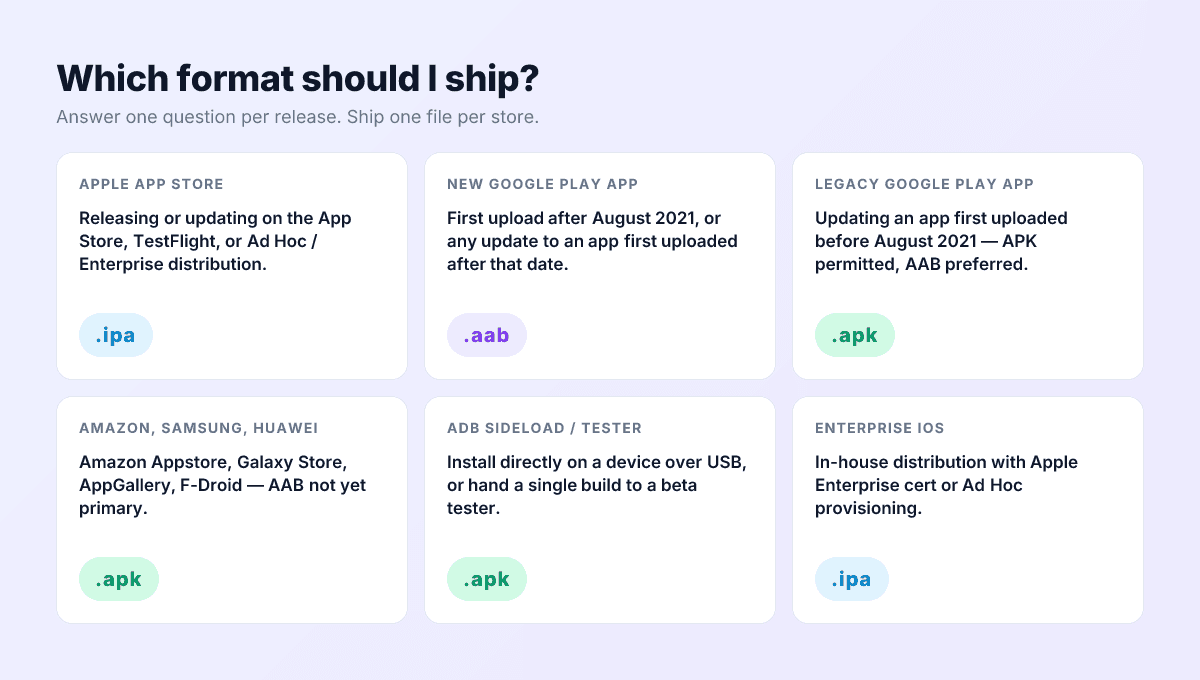
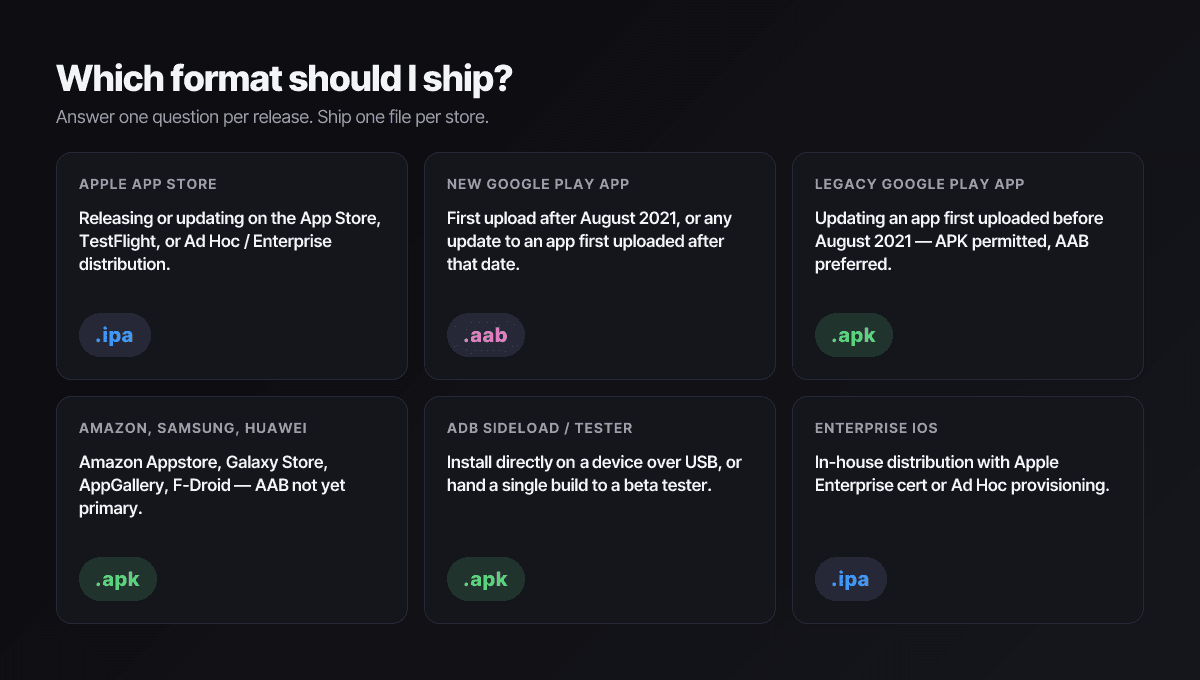
Use IPA if
- You’re shipping to the App Store or TestFlight — the only iOS path.
- You’re distributing via Apple Business/School Manager or EU alternative channels — same artifact, different review and entitlements.
Use AAB if
- You’re shipping anything new to Google Play — there is no choice to make.
- You’re updating a pre-2021 Play app and want smaller installs and Play App Signing’s recovery story — opt in and switch.
Use APK if
- You’re putting a build on a specific device right now (ADB, a tester’s phone, a demo unit).
- You’re distributing through Samsung, Huawei, F-Droid, Fire devices, or your own MDM.
- You’re updating a Play app grandfathered from before August 2021 — allowed, but the AAB migration is one Gradle task away.
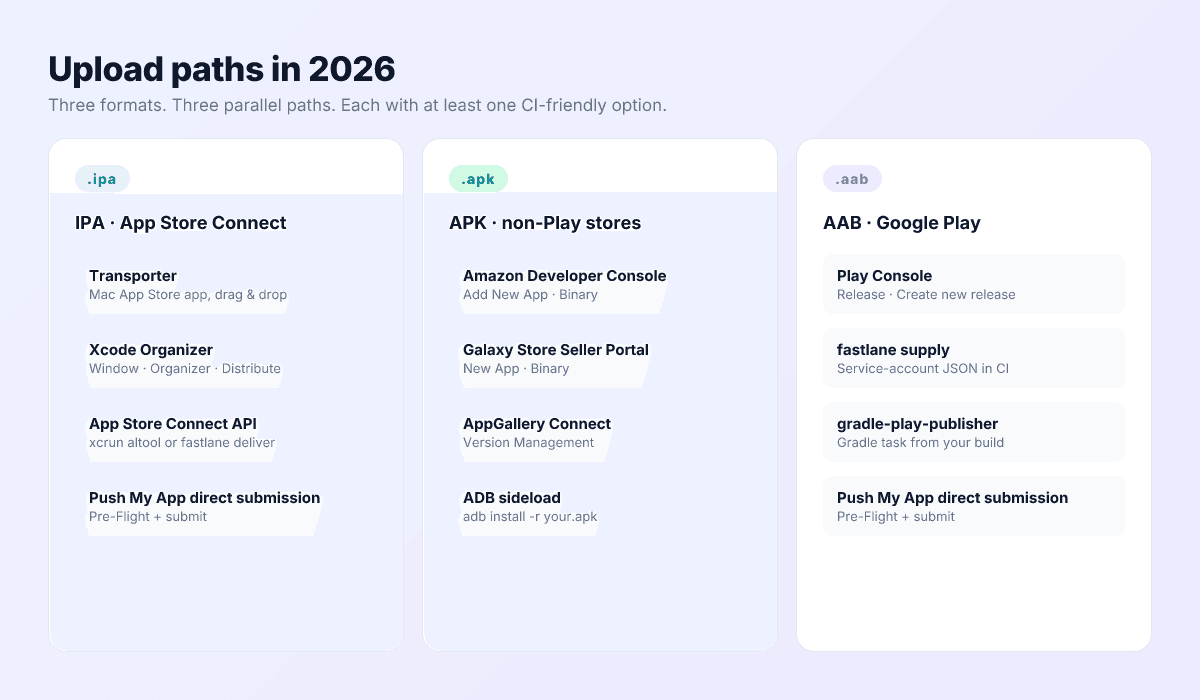
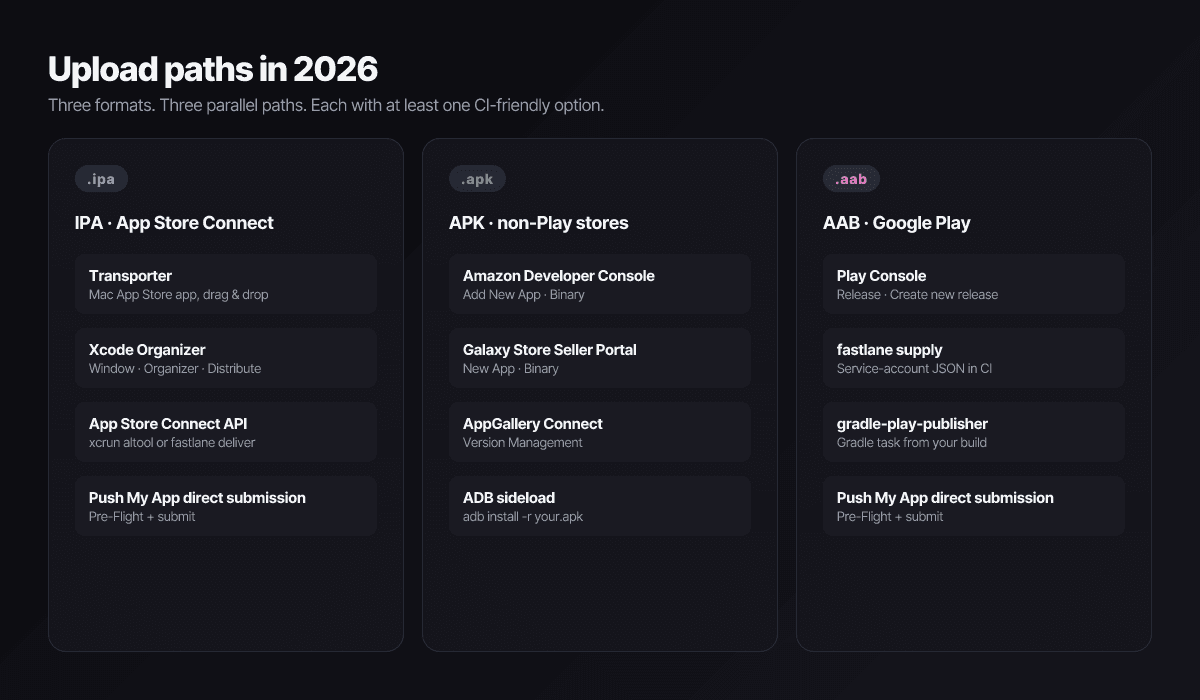
How to upload each format in 2026
IPA → App Store Connect
- Xcode Organizer — archive, validate, distribute. The default for solo developers.
- Transporter — Apple’s drag-and-drop upload app, useful when the archive comes from a build machine.
- App Store Connect API — the CI path. An API key from Users and Access → Integrations drives fastlane’s
pilot/deliveror your own scripts; no Apple ID 2FA in the pipeline. - Push My App direct submission — the Pre-Flight Scanner checks the binary first, then submits to App Store Connect from the dashboard.
APK → everywhere else
- Samsung Seller Portal, Huawei AppGallery Connect, and F-Droid’s inclusion process each take a signed APK through their consoles.
- Fire devices go through the Amazon Developer Console — Android-phone targeting is gone, Fire TV and tablets remain.
- Direct:
adb install, an MDM, or a download link with install-unknown-apps friction you should expect.
AAB → Google Play
- Play Console: Release → track → Create new release, upload, notes, roll out — remembering new personal accounts face the closed-testing gate covered in the beta testing guide.
- CI: the Play Developer API via
fastlane supplyorgradle-play-publisher, authenticated with a service-account JSON. - Push My App: the same scanner validates signing, 16 KB alignment, target SDK, and debug flags, then submits to your chosen track.
Common upload errors and their fixes
| Error | Format | Fix |
|---|---|---|
| SDK version rejected at upload | IPA | Build with Xcode 26 / iOS 26 SDK — mandatory since April 28, 2026. |
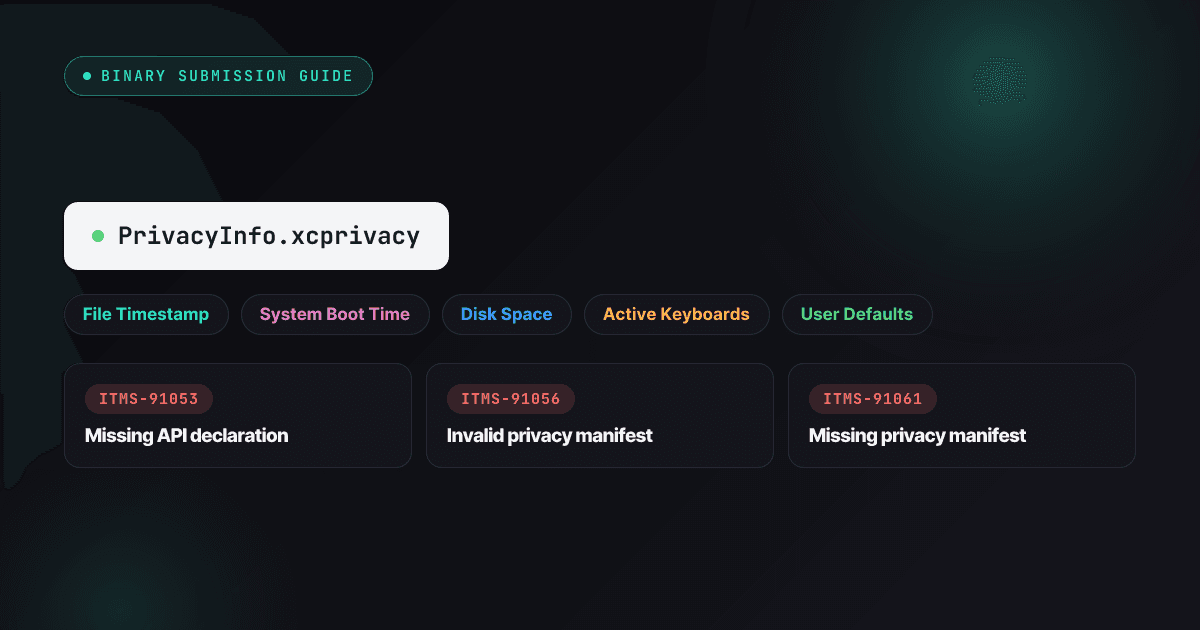
| “Missing Privacy Manifest for required-reason API” (ITMS-91053) | IPA | Add PrivacyInfo.xcprivacy to the app target and to any SDK lacking one — the manifest guide decodes each code. |
| “Invalid signature” / profile mismatch | IPA | Distribution certificate and provisioning profile must match the bundle ID — re-archive with automatic signing or fix the export options. |
| “Targets API level X; at least 35 required” | AAB | Bump targetSdkVersion, re-test permissions and foreground services — and plan for 36 before August 31, 2026. |
| “Bundle not compatible with 16 KB devices” | AAB | Rebuild native dependencies with a current NDK; verify alignment in the App Bundle analyzer. |
| “App Bundle was not signed” | AAB | Sign with the upload keystore in the Gradle signing config — an unsigned bundle is the most common first-CI-run failure. |
Every one of these — plus the seventy-odd non-binary ways a submission dies — lives in the rejection reasons index, and the mechanical ones are exactly what the Pre-Flight Scanner automates.
The binary is half the submission
Signing, upload keys, and Play App Signing
iOS: recoverable by design
One distribution certificate, one provisioning profile, both tied to your Developer Program account. Lose the private key and you revoke, regenerate, and re-archive — users never notice, because Apple controls the distribution signing chain. The operational risk on iOS is expiry breaking CI, not loss breaking users.
Android: two keys, one of them precious
- The upload key — yours. Signs everything you send to Play. Compromised or lost, Google can verify you and register a replacement.
- The app signing key — signs what devices install. Under Play App Signing (default since 2020, mandatory for new apps) Google escrows it. Self-managed and lost, your app is over: no update can ever reach existing installs, and the only path is a new package name starting from zero.
The practical rules: enroll in Play App Signing without agonizing (the recovery asymmetry settles the debate), keep the upload keystore in a password manager plus an encrypted offline backup, and store passwords separately from the files. Key hygiene is boring right up until it’s the whole company.
Pre-flight every binary before you hit Submit
Push My App’s Pre-Flight Scanner inspects every .ipa, .apk, and .aab against the full rejection index — signing, privacy manifest, target SDK, 16 KB alignment, debug flags — then direct submission ships the clean build to both stores from one dashboard. See pricing for what’s included.
Frequently asked questions
Can I still upload APKs to Google Play in 2026?
Only as updates to apps that first shipped before August 2021 — and even then AAB is the smarter path. Every new Play listing has required an Android App Bundle since August 2021. APKs remain the format for sideloading, Samsung Galaxy Store, Huawei AppGallery, F-Droid, and Fire devices, but no longer for Amazon's Android store, which shut down in August 2025.
What's the practical difference between an AAB and an APK for users?
Install size. Play slices an AAB into a device-specific APK at download time, so users skip the screen densities, languages, and CPU architectures they don't need — typically a 15 to 20 percent smaller download than a universal APK. The AAB itself never installs on a device; it's a publishing format, not an install format.
What is the difference between an upload key and an app signing key?
You hold the upload key and sign everything you send to Play with it. The app signing key signs what devices actually install — and under Play App Signing, the default since 2020, Google holds it. The split exists so a lost or leaked upload key is recoverable: Google verifies you, registers a new upload key, and your users never notice. Lose a self-managed app signing key and there is no recovery path.
Can I convert an APK to an AAB without rebuilding?
No. The bundle layout — split resources, configuration dimensions, optional asset packs — is produced by the Android Gradle Plugin from your project sources. Run 'gradlew bundleRelease' or use Android Studio's Generate Signed Bundle flow; if you only have a compiled APK and no source, there is no supported conversion.
What are the upload size limits in 2026?
App Store Connect accepts iOS app bundles up to 4 GB. Google Play caps the compressed download of your base configuration at 200 MB, with Play Asset Delivery carrying larger apps and games beyond that. If you're bumping against either ceiling, asset delivery design — not compression tricks — is the real fix.
Ship your listing without the rejection letter
Push My App generates store-ready metadata, resizes screenshots for every device, translates your listing into 14 languages, and runs an 80+ item rejection pre-flight before you submit.
Get Started FreeKeep reading
Store Submission
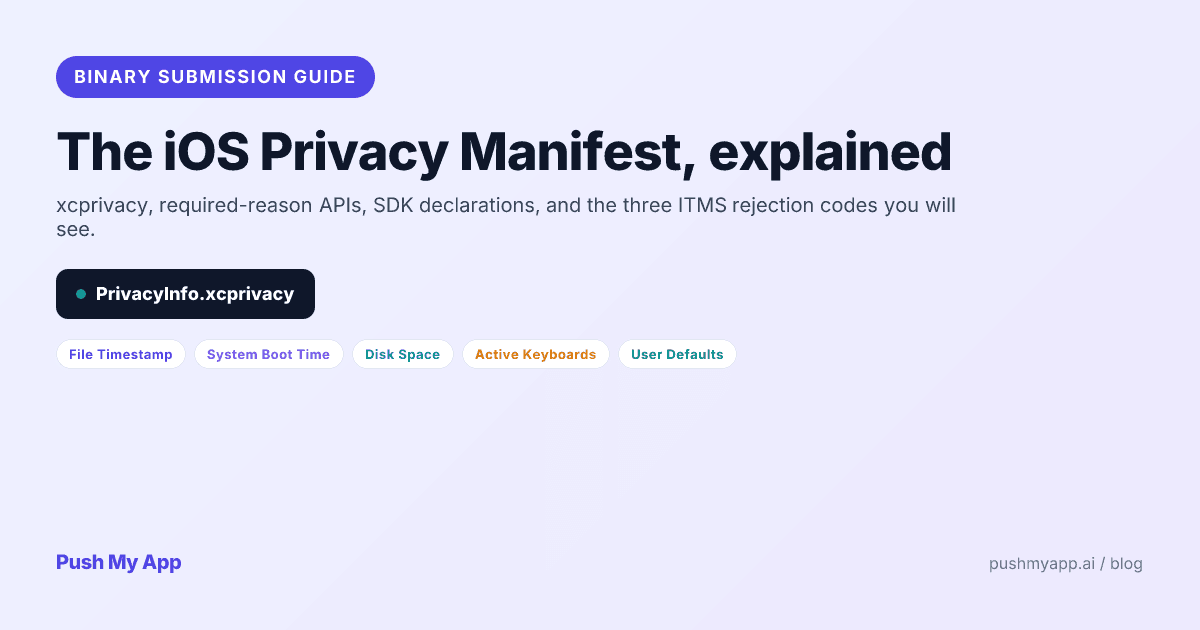
iOS Privacy Manifest: The 2026 Developer Guide to xcprivacy and Required-Reason APIs
PrivacyInfo.xcprivacy explained for 2026 — the five required-reason API categories, SDK signing rules, the three ITMS rejection codes, Xcode's privacy report, and a 15-minute audit.
Read
Store Submission
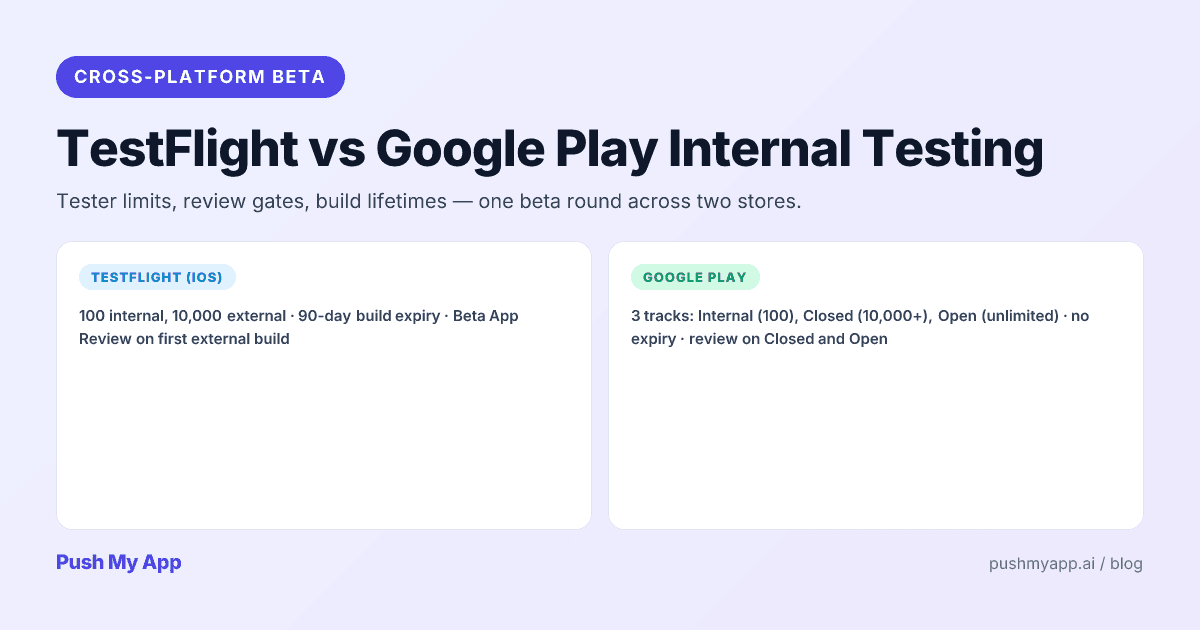
TestFlight vs Google Play Internal Testing: A 2026 Cross-Platform Beta Guide
TestFlight vs Google Play testing tracks in 2026 — tester limits, review gates, the 12-tester production requirement, build lifetimes, and one workflow that runs both betas in parallel.
Read
App Store Rejections
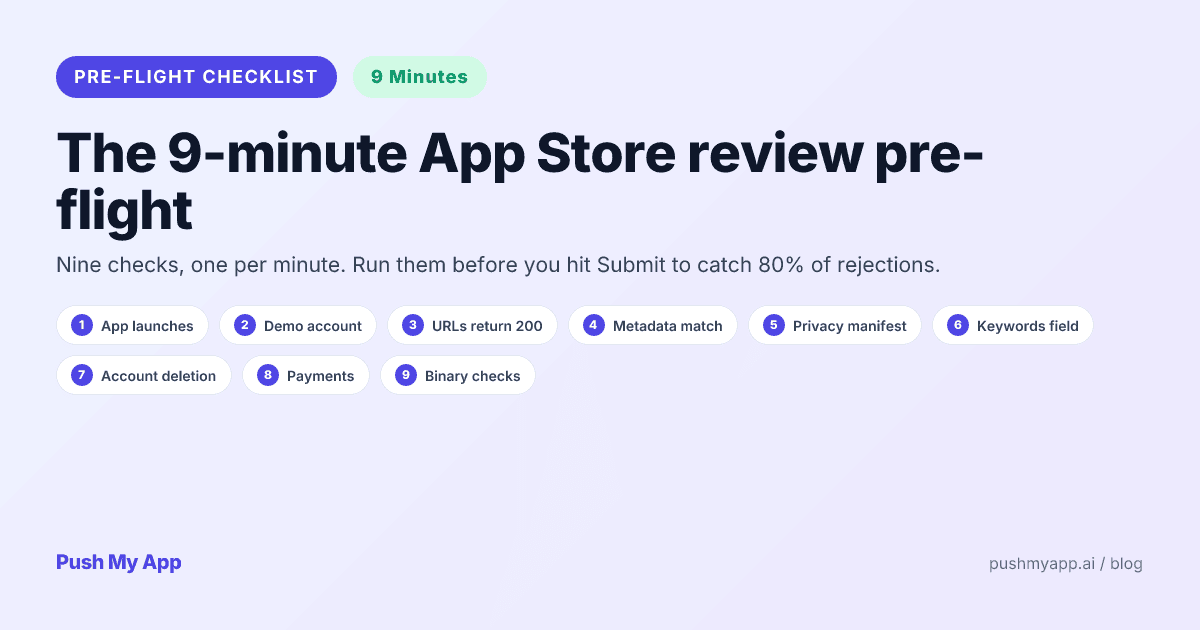
App Store Review Pre-Flight: A 9-Minute Checklist Before You Hit Submit
Nine one-minute checks that catch most App Store and Google Play rejections before reviewers do — updated for the Xcode 26 mandate, age-rating gates, and 2026 compliance fields.
Read