
ASO Guides
App Store Review Responses: The Conversion Flywheel Nobody Owns
Developer responses render publicly next to every review — which makes them conversion copy. Reply templates for the five review types, the 48-hour window, Play's reply mechanics, and a sustainable cadence.
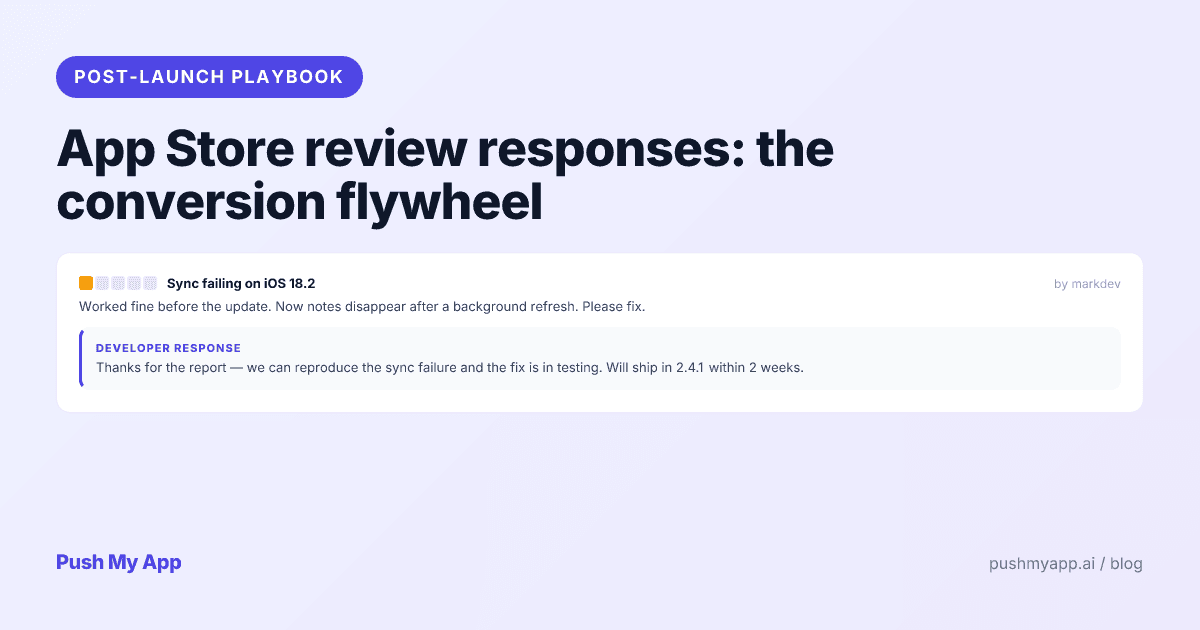

Every developer response you write is read by two audiences: one angry user, and every prospective user who scrolls your reviews while deciding whether to install. The second audience is bigger, quieter, and the one that pays — which means review responses aren’t support tickets, they’re conversion copy published next to your worst press.
Most indies either ignore the surface entirely or answer only when provoked, in the wrong tone, weeks late. This playbook is the alternative: when replies are actually seen, templates for the five review types that cover nearly all indie review traffic, the failure modes that make replies worse than silence, how Google Play’s version differs, and a cadence a one-person team can sustain.
It slots into step five of the ASO playbook — the social-proof flywheel — as the operating manual.
Why responses became conversion copy
Developer responses render directly beneath the review they answer, paired as a visible conversation on your product page. Prospective users scrolling reviews don’t read them as private correspondence — they read them as evidence about you: does this developer notice problems, fix them, and stay civil under fire?
That framing changes what a one-star review costs. Unanswered, it’s a verdict from a stranger. Answered well, it becomes a demonstration — of responsiveness, technical competence, and temperament — placed exactly where skeptical users look first. Ratings tell users what the crowd thinks; responses tell them what working with you is like. Both stores also notify the reviewer on reply and allow rating revisions afterward, which is why a meaningful share of well-answered negative reviews get edited upward.
The 48-hour window
A review’s audience is front-loaded: it gets most of its lifetime exposure in its first days at the top of the Most Recent sort, while your app’s evaluators that week scroll past it. A reply that lands inside that window is seen by the same wave of prospective users who saw the complaint. A reply that lands in week three is effectively a private message.
Operationally: get notified (a review-alert tool, or a daily manual check while volume is low) and hold yourself to one-business-day replies on anything negative or specific. Late is still worth doing — the close-the-loop edit re-notifies the reviewer — but the conversion value concentrates early.
At indie volume, this is a 15-minute habit
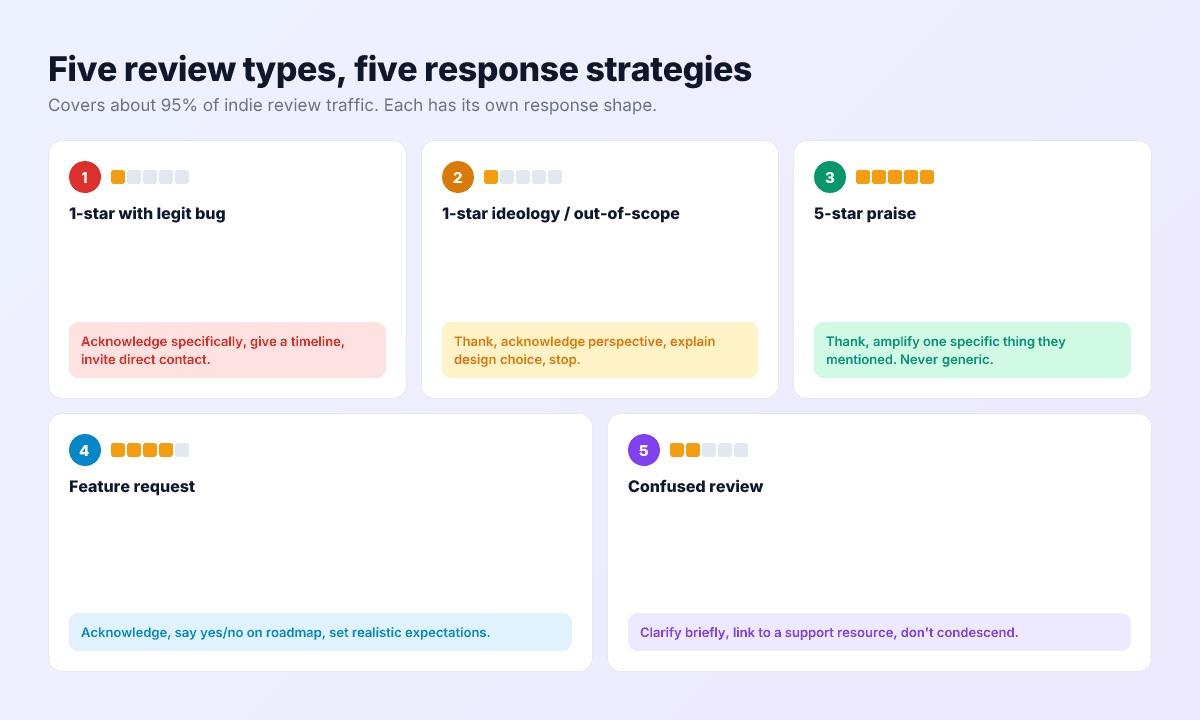
The 5 review types and how to respond
Type 1 — one star, real bug
Thanks for the report — reproduced it: sync stalls on iOS after a background refresh kills the upload. Fix is in testing and ships in 2.4.1, about two weeks out. If you want the TestFlight build sooner, email support@example.com.
The structure: confirm specifically (technical credibility), commit to a realistic timeline (operational credibility), offer a direct channel (reachability). Then — the step everyone skips — edit the reply when the fix ships.
Type 2 — one star, philosophical objection
Pricing complaints, model objections, design disagreements: the review is an opinion, not a defect, and arguing with it loses in public.
Fair feedback, thank you. We went with a subscription so the app can keep improving without ads or selling data — a trade-off we know isn’t for everyone. Appreciate you giving it a real try.
Type 3 — five stars, specific praise
Thank you! The offline conflict-resolution was the hardest three weeks of the whole build — genuinely glad it’s invisible in daily use, which was the goal.
Amplify the specific thing they praised. Specificity is what separates a human reply from an auto-thanks — and it quietly markets the feature to everyone reading.
Type 4 — feature request
Good ask. Widgets are in development now and should ship this spring; Watch support is on the list but behind widgets this cycle. The review is a useful +1 for prioritizing it.
Honest roadmap position, no over-promising — request reviewers disproportionately convert into power users when their ask lands, and into upgraders when you tell them it landed.
Type 5 — the misunderstanding
Thanks — quick clarification: the app imports CSV exports from your bank but doesn’t connect to accounts directly (no credentials ever leave your device, which is the point). The import guide in Settings walks through it in two minutes.
Correct the record for the audience, never the reviewer’s intelligence. If the same misunderstanding keeps appearing, the review isn’t the bug — your listing copy is.

What to never do in a review response
- Win the argument. Every spectator scores it against you, even when you’re right — especially when you’re right.
- Reply with one template everywhere. Identical responses stacked down a review page read as a bot, and a bot reads as a developer who left.
- Blame the user. Prospective users assume your support will treat them the way your replies treat reviewers.
- Promise dates you don’t control. A public “next week” that slips converts one bad review into a documented broken promise.
- Leak anything private. Support-ticket details, emails, purchase history — replies are permanent public record.
- Sell. An upsell under a bug report is the single worst look available on a product page.
- Answer in the wrong language. Reply in the review’s language — the same localization discipline as the rest of the listing, applied to the most-read sentences on it.
Generating reviews worth responding to
The flywheel needs fuel, and the fuel is prompted reviews — unprompted ones skew heavily toward the angry. The mechanics: on iOS, StoreKit’s requestReview shows the native rating sheet and budgets itself to three asks per user per year; on Android, the Play In-App Review API does the same job with an opaque quota. Both decide silently whether to actually display, so never write UI that promises a dialog.
The craft is entirely in the timing. Ask at the success moment — the export completed, the streak hit thirty, the project shipped — because you’re sampling users at the instant your app just proved its value. Never ask at first launch (no earned goodwill yet), after an error (obviously), or on a fixed timer (random sampling of moods). And never gate: routing happy users to the store while diverting unhappy ones to a feedback form is prohibited on both stores and instantly recognizable to reviewers — human and algorithmic alike.
Done right, prompting raises both volume and average — and every additional specific review is another public slot for the response craft above.
The Google Play side
Play’s reply system rhymes with Apple’s — public reply under the review, user notified, ratings revisable — with two practical differences worth planning around. First, replies are tighter: Play’s response field is short, so the templates above compress to two or three sentences. Second, Play users revise ratings after replies at famously higher rates, which makes the close-the-loop edit even more valuable on Android — fix shipped, reply updated, rating frequently follows.
Play Console also exposes review analytics (themes, rating breakdowns, device patterns) worth a monthly read: recurring complaint clusters are roadmap data wearing a one-star costume. Whatever you learn there feeds the same response cadence — one inbox, two stores.
Do responses affect ranking?
Not directly, as far as anyone outside Apple and Google can demonstrate — and it doesn’t matter, because the indirect path is strong and measurable. Responses lift product-page conversion; conversion feeds install velocity; velocity and the rating improvements that follow good responses feed ranking. Write replies for the humans evaluating your app, and the algorithms inherit the result.
The measurable bit: watch page-view-to-install conversion in App Store Connect over a sustained response push, and watch your rating trend as closed loops convert into revised ratings. Those two lines are the response program’s scoreboard.
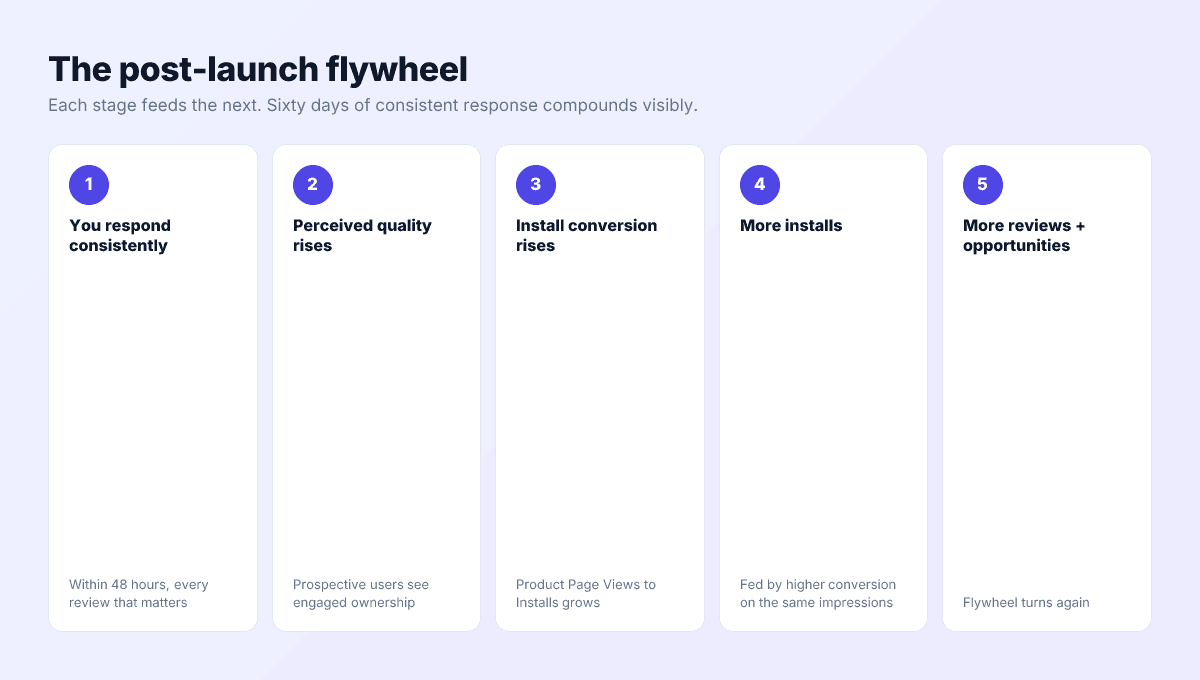
The post-launch flywheel and a sustainable cadence
- You respond fast and specifically.
- Evaluating users see engaged ownership; some negative reviewers revise upward.
- Conversion and rating both tick up.
- More installs produce more reviews.
- More reviews give you more public demonstrations — and the wheel turns.
Each turn is small; sixty days of consistency is visible in analytics. The cadence that survives contact with a real indie schedule:
- Daily (5–15 min): answer anything negative or specific from the last 24 hours, in the review’s language.
- Weekly: scan the week’s reviews for repeated themes — a digest that summarizes new reviews, rating deltas, and recurring topics turns this into a two-minute read. Push My App’s review inbox does exactly that, with AI-drafted replies you edit rather than write from scratch.
- Per release: close every loop — update replies on fixed bugs and shipped requests, the single highest-yield edit in the whole system.
Run the response loop from one inbox
Push My App syncs reviews from both stores into one inbox, drafts replies with AI for you to edit, flags rating drops, and sends a Monday digest of themes and deltas — so the flywheel runs on minutes, not willpower. See pricing for what each plan includes, and the 9-minute pre-submission checklist for the submission side.
Frequently asked questions
How fast should I reply to a negative review?
Within a day or two of it posting. New reviews get their heaviest exposure while they sit at the top of the Most Recent sort — reply inside that window and everyone evaluating your app that week sees the complaint and your answer together. Reply a month later and the audience is mostly just the original reviewer.
Should I reply to positive reviews too?
Selectively. Reply to the five-star reviews that say something specific — a feature, a workflow, a problem you solved — and amplify that specific thing in a sentence. Blanket thank-you replies on every positive review read as automation and dilute the responses that matter.
Can I edit a response later?
Yes, on both stores, and the edit re-notifies the reviewer. That's the mechanism behind the close-the-loop move: promise the fix, ship it, then update your reply to 'fixed in 2.4.1' — which is also the moment many reviewers revise their rating upward.
Do good responses to bad reviews actually help conversion?
Yes — a one-star review with a competent, calm reply reads as evidence of engaged ownership, which is exactly what a prospective user is trying to assess. An unanswered one-star review is a verdict; the same review with a good response is a conversation you visibly won.
What about spam or fake reviews?
Report them through the store's concern flow first — both stores remove clear violations. While the review stays up, reply once, neutrally, without accusations: prospective users can usually spot spam themselves, and your composure is the signal. Public arguments with fake reviews make the listing look chaotic.
Ship your listing without the rejection letter
Push My App generates store-ready metadata, resizes screenshots for every device, translates your listing into 14 languages, and runs an 80+ item rejection pre-flight before you submit.
Get Started FreeKeep reading

ASO Guides
Apple Search Ads for Indie Developers: When It's Worth It (and When It Isn't)
Apple Search Ads is now Apple Ads, with four placements and the same indie question: is it worth your money yet? The readiness gate, real learning costs, and the five keywords worth bidding on.
Read

ASO Guides
App Store Optimization for Indie Developers: The 2026 Playbook
A zero-budget ASO system for indie developers in 2026: keyword clusters, metadata that converts, screenshot strategy, localization order, the review flywheel, and a 30-day sprint.
Read

ASO Guides
App Store vs Google Play: Side-by-Side Listing Requirements (2026)
Every App Store and Google Play listing requirement compared for 2026 — metadata limits, assets, privacy forms, SDK floors, review gates, trader status, and account rules.
Read