
Metadata & Keywords
Apple App Store Keywords: The 100-Character Field Explained (2026)
How Apple's hidden 100-character keywords field works in 2026 — what's indexed, the rejection rules, character-economy tactics, cross-localization, and custom product page keywords.
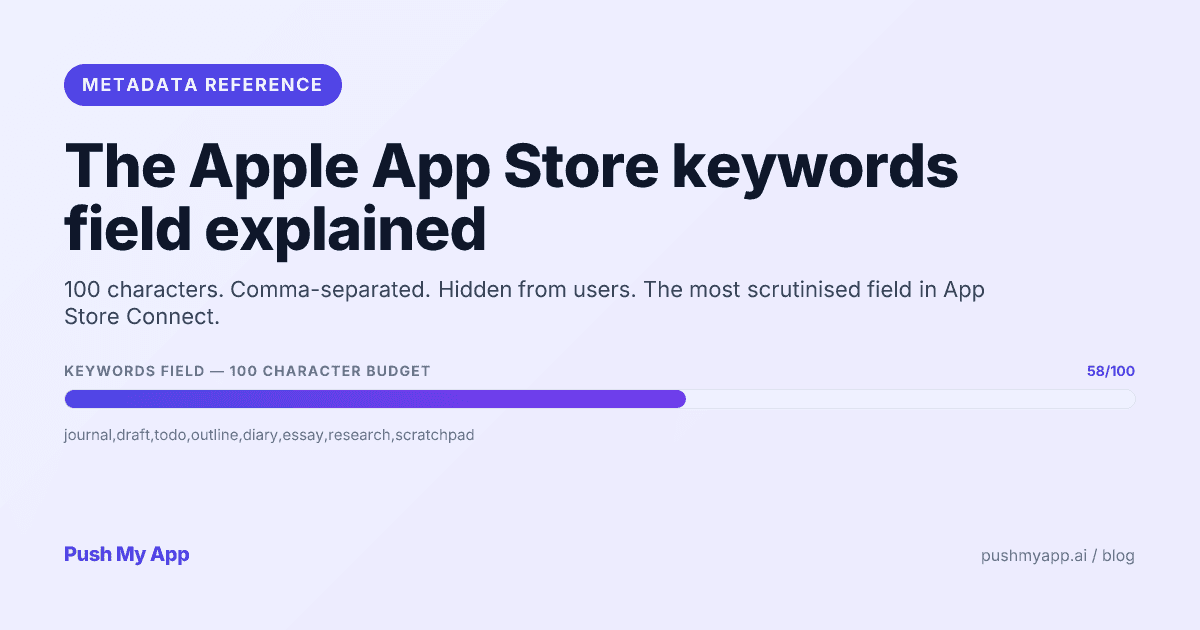
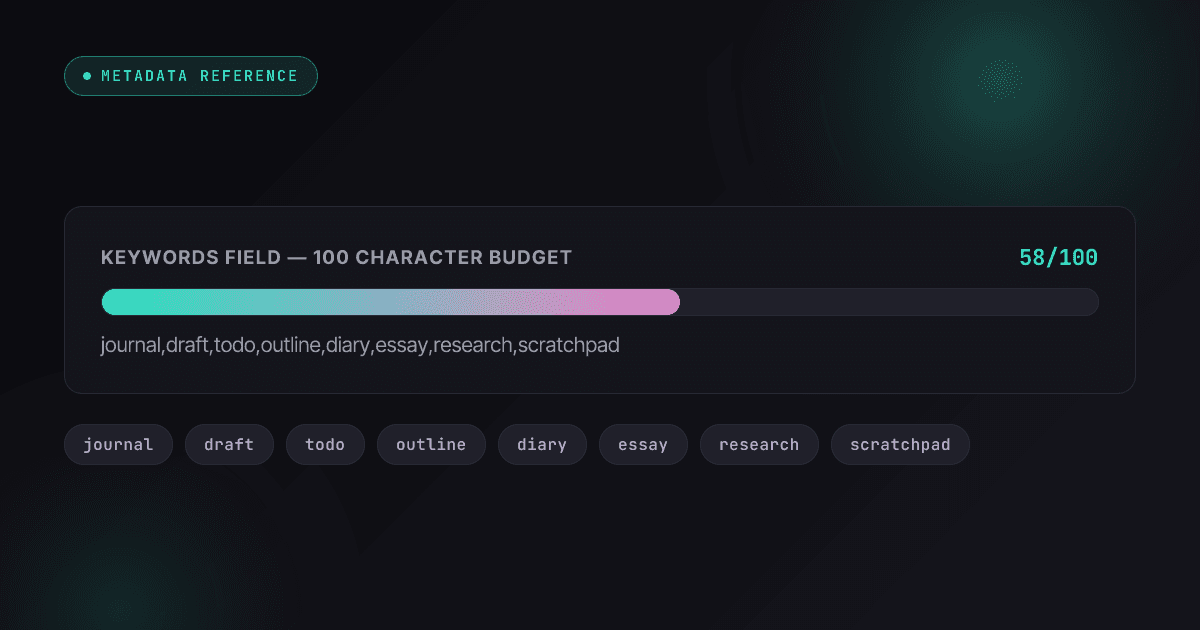
Of everything you write in App Store Connect, the keywords field is the strangest: 100 characters no user will ever see, with no Google Play equivalent, that decide a large share of the searches your app can appear in. Most developers fill it once, badly, at launch — and never learn the matching rules that make half their string dead weight.
This is the full 2026 reference for the field: what Apple counts, what Apple indexes, what gets you rejected, the character-economy tactics that fit more terms into the budget, and the two newer levers — cross-localization and custom product page keyword assignment — that extend the field’s reach beyond its 100 characters.
To apply it as you read, keep the free keyword character counter open in another tab; for the strategy layer above the field, the keyword research playbook covers picking the terms in the first place.
What the keywords field actually is
In App Store Connect the field lives under each localization’s app information: one comma-separated string per locale, per platform. Apple combines it with your name and subtitle to build the set of queries you can rank for. It never appears on the product page, and users have no way to read it — but App Review does, which matters for the content rules below.
Two structural facts shape everything else. First, the field is version-bound: it changes only when you ship a new app version, so keyword experiments ride your release cadence. Second, it is per-locale: English (US), German, and Japanese are three separate 100-character budgets, not one shared string.
The 100-character limit — what counts
Everything in the box counts: letters, commas, spaces, punctuation. Apple counts Unicode characters rather than bytes, so a Japanese or Chinese character spends exactly one character of budget, same as a Latin letter — which makes CJK keyword fields effectively roomier per concept.
- Commas count. A 12-keyword string spends 11 characters on separators before a single term is written.
- Spaces count. A space after each comma is a wasted character per separator — the most common silent leak.
- Invisible whitespace counts. A trailing space pasted in from a spreadsheet still spends a character.
- Over-budget strings don’t submit. App Store Connect refuses to save past 100 — this fails loudly, unlike the silent waste above.
The keyword character counter shows the live count and flags the silent problems — spaces after commas, trailing whitespace, and words duplicated from your title or subtitle — in one pass.
What Apple actually indexes
The reason keyword characters get wasted is that most developers misremember which fields feed search ranking.
Indexed for ranking
- App name (30 characters)
- Subtitle (30 characters)
- Keywords field (100 characters)
- In-app purchase display names
- Developer name
Not indexed for ranking
- Description
- Promotional text
- What’s New text
- Screenshot overlay text and preview captions
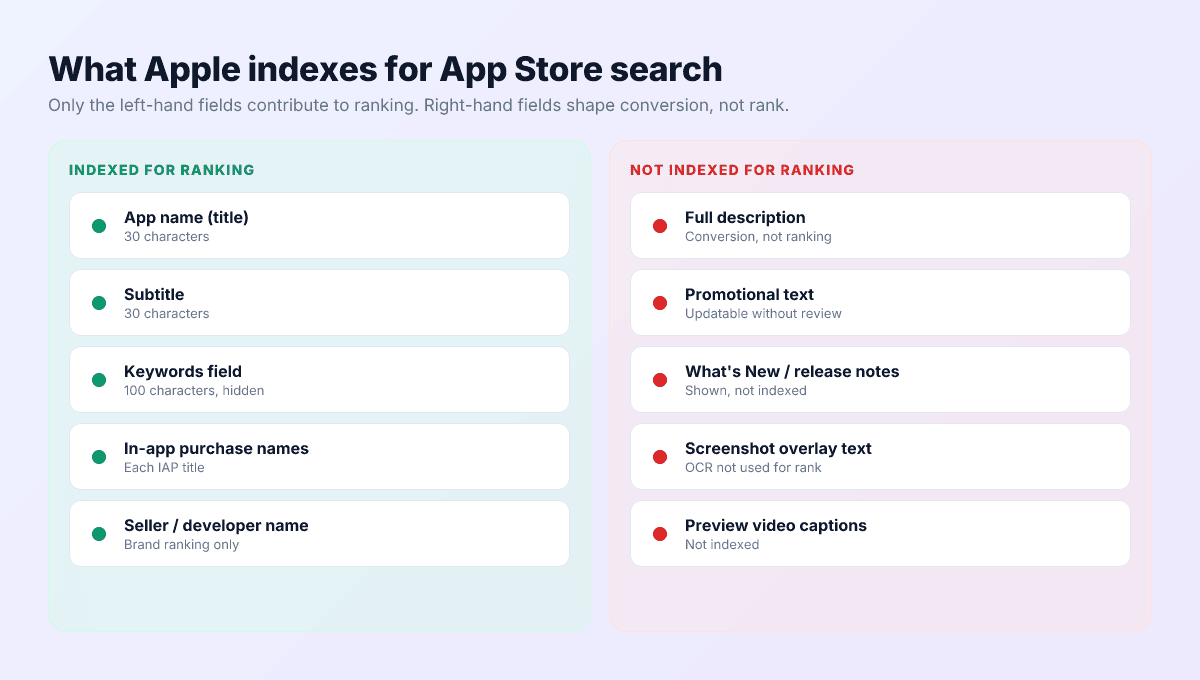
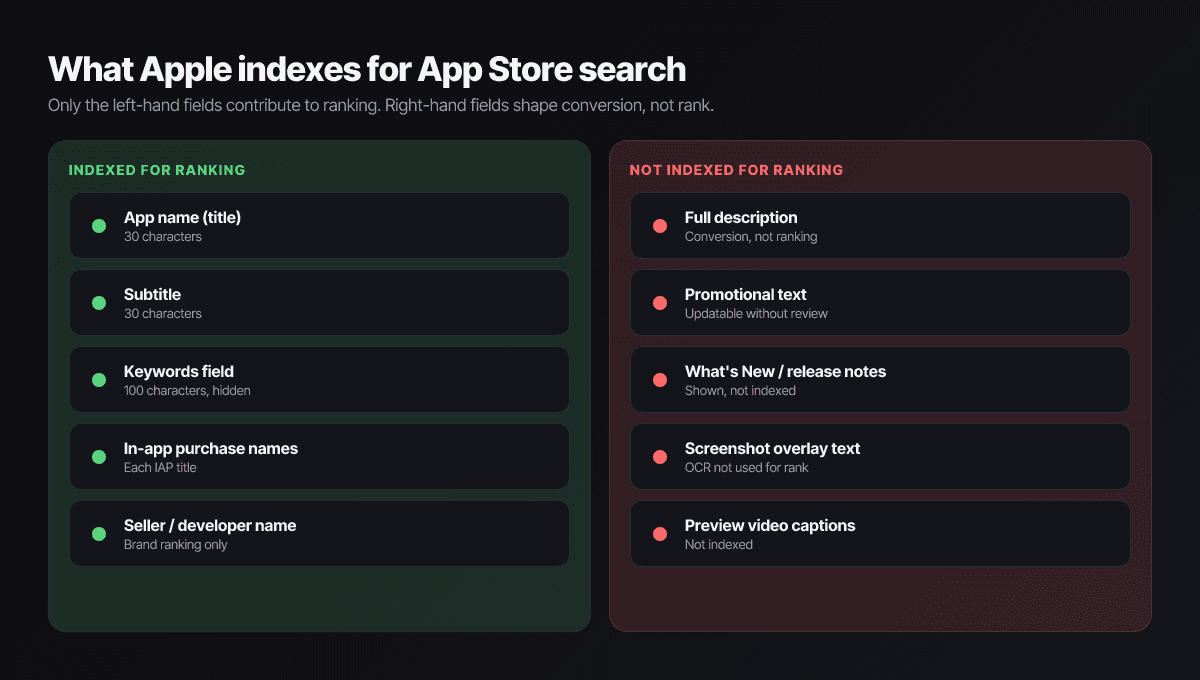
The corollary is the single most useful rule in iOS ASO: title, subtitle, and keywords form one combined index. A word in your title is already a keyword. Repeating it in the keywords field adds nothing — Apple doesn’t reward repetition — and silently costs you a slot another term could have filled. Audit in that order: title first, subtitle second, and the keywords field gets only what the first two don’t already say.
The rules every keyword string has to follow
Format rules — enforced at submission
- One comma-separated string per locale, 100 characters max.
- No spaces around commas by convention:
habit,streaknothabit, streak. - No line breaks.
Content rules — enforced by App Review
- No competitor brands or third-party trademarks. Guideline 5.2 rejections routinely cite the hidden keywords field — reviewers read it even though users can’t. The rejection reasons index has the real-world examples.
- No Apple terms.
iphone,ios,app storeand friends are reserved — and redundant anyway, since you only rank in Apple’s store. - No irrelevant trend-jacking. Keywords unrelated to your app’s function read as manipulation under guideline 2.3.7.
Matching rules — what Apple does for free
- Case-insensitive. Write everything lowercase.
- Singular covers plural (and common tense variants).
habitranks for habits;trackcovers tracking in most query shapes. - Queries combine terms across fields. A search for sleep habit tracker can match
sleepfrom your subtitle plushabitandtrackerfrom keywords — you don’t write phrases, you write parts. - Order is irrelevant, both within the field and within the query.
What Apple does not do for free
- Compound words don’t split:
habittrackermatches neither habit nor tracker. - Misspellings aren’t bridged reliably — don’t spend characters on typos.
- Locales don’t leak: English keywords do nothing for Japanese queries (cross-localization below is the structured exception).
Character economy — fit more keywords
Run every string through six checks, in descending value:
- Delete anything already in your title or subtitle. Usually the biggest recovery — 15–25 characters in typical real strings.
- Collapse plural/singular pairs. Keep the shorter form.
- Kill spaces after commas and trailing whitespace.
- Prefer the short synonym.
diary(5) overjournaling(10) if search volume is comparable — that’s a whole extra term per swap. - Drop connective tissue. for, and, the contribute nothing; Apple’s query matching handles structure.
- Drop category names. You already rank in your category;
productivityis 12 characters of nothing.
A disciplined audit usually frees 20+ characters — two or three net-new search terms — without losing a single query you ranked for before.
The subtitle is keyword field 1a
Cross-localization — beyond 100 characters
Several storefronts index more than one localization’s metadata. The canonical case: the US storefront indexes both English (U.S.) and Spanish (Mexico) fields. Fill in the es-MX title, subtitle, and keywords and American users can find you through those terms too — effectively additional indexed characters for your biggest market, and properly localized coverage for US Spanish speakers at the same time.
Three cautions. Words are deduplicated across localizations, so repeating the English string in es-MX buys nothing — use the space for new terms. The locale pairs are Apple’s, not yours to choose, and they differ per storefront (UK, Australia, and others each have their own secondary-locale behavior). And the tactic is an amplifier, not a substitute: it rewards teams whose primary string is already disciplined.
Related 2025 addition: keywords can now be assigned to custom product pages, so a search for a specific term can land on a CPP built for that intent — up to 70 pages per app. Ranking still comes from your metadata; CPP assignment decides which page the click deserves. Worth doing once your top three terms convert differently.
Worked examples
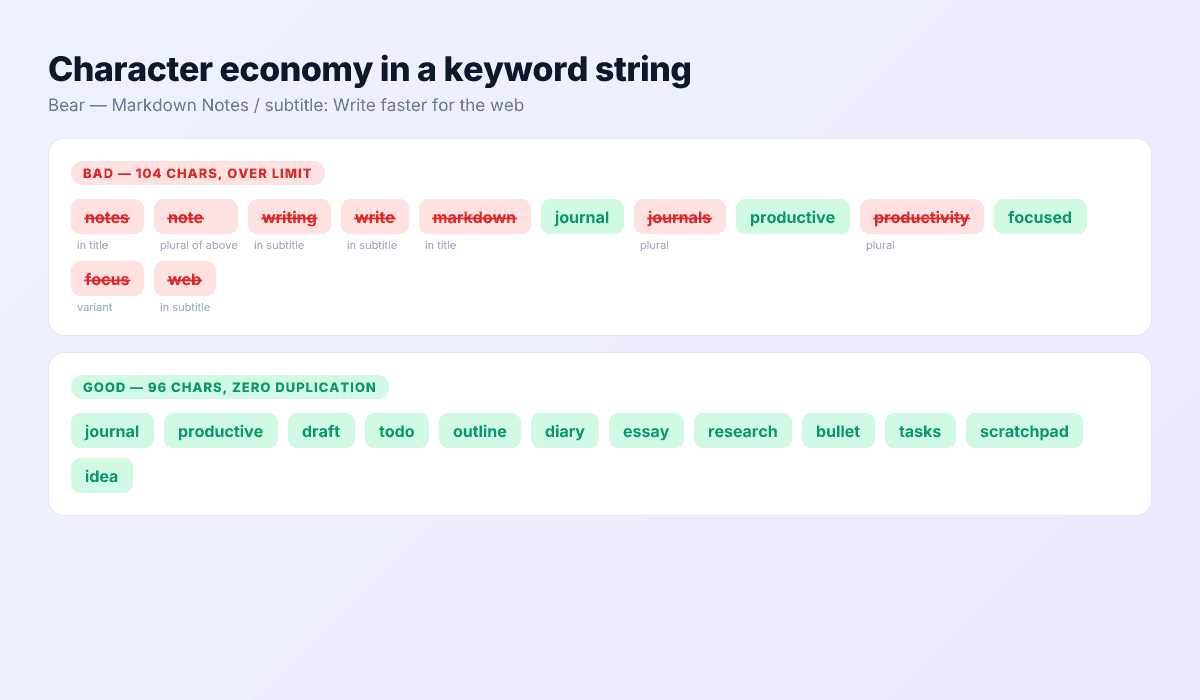
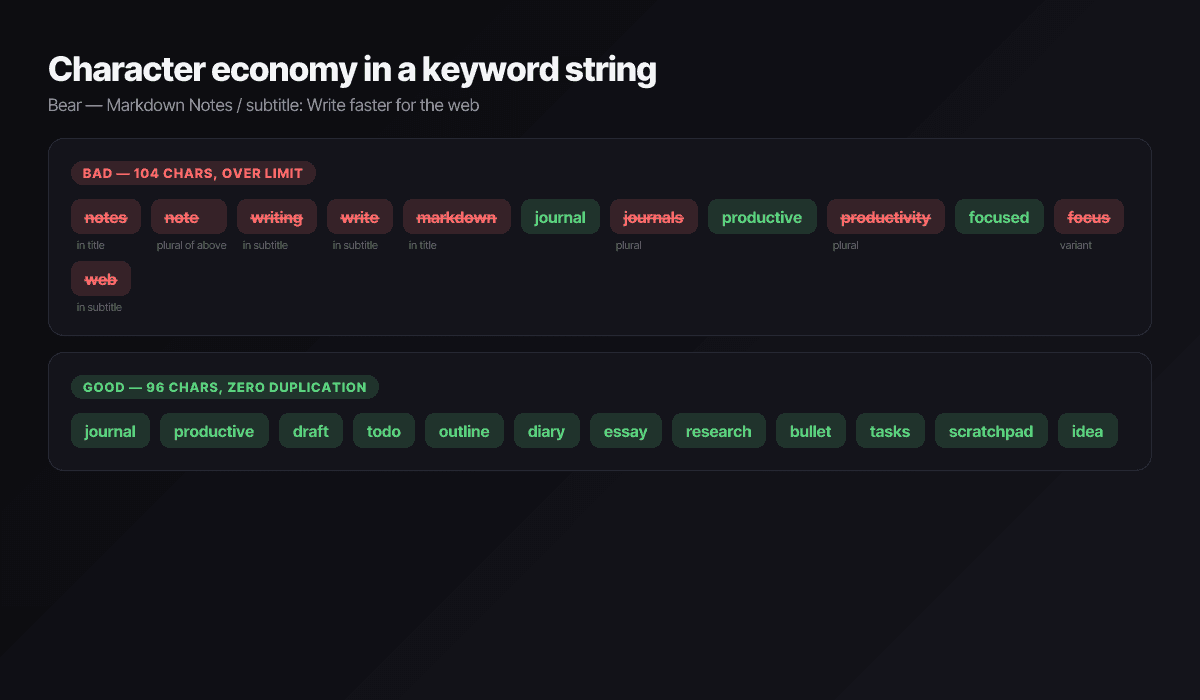
Example 1 — a markdown notes app
Title: Inkwell — Markdown Notes
Subtitle: Write, plan, publish
Before (over budget, riddled with waste):
notes, note taking, markdown, writing, writer, journal, journals, planner, planning, notion, evernoteThe damage: spaces after every comma; notes, markdown, writing, planner duplicate or auto-match title and subtitle words; journals duplicates journal; notion and evernote are 5.2 rejections waiting to be noticed.
After (95 characters, every word net-new):
journal,diary,draft,outline,todo,task,scratchpad,essay,blog,wiki,zettelkasten,study,researchCombined with the title and subtitle, the app now covers roughly 17 distinct search terms instead of 8 — same budget, no rejection bait.
Example 2 — a meditation app
Title: Stillwater: Meditation
Subtitle: Sleep, focus, breathe
Before: meditation,meditate,calm,headspace,sleep sounds,relaxing games,health,mindfulness — duplicates the title’s meditation (and its auto-matched meditate), names two competitors, and spends characters on the category word health.
After (93 characters):
mindful,anxiety,stress,relax,wind,down,guided,zen,rest,nap,insomnia,worry,gratitude,morningNotice wind and down as separate terms: Apple assembles multi-word queries from parts, so the pair covers wind down without spending a phrase slot.
Measuring whether a change worked
Because keywords only change with releases, every revision is an experiment with a several-week readout. Make it a real experiment:
- Change one variable per release. If you rewrite the keywords, the subtitle, and the screenshots in the same version, the impressions chart can’t tell you which one moved it.
- Watch impressions before downloads. A keyword change shows up first as search impressions in App Store Connect’s analytics. Downloads lag; ranking movement on the specific terms lags further.
- Use Apple Ads popularity as the volume proxy. The 5–100 popularity score is the only first-party signal of query volume — a term scoring under ~15 won’t produce a visible impressions change even if you rank first for it.
- Give it two to four weeks. Re-indexing is fast, but stable ranking positions settle over weeks. Judging a string after three days produces thrash, not learning.
Localizing keywords properly
Each locale’s 100 characters deserve their own research, because search behavior doesn’t translate. German users compound words; Japanese users mix kanji terms with transliterated English; Spanish app-store queries often keep English tech vocabulary. A translated keyword string is grammatically fine and commercially dead.
The workflow that works: pull each market’s autocomplete suggestions, check what locally successful competitors rank for, and rebuild the string from local terms. Push My App’s 14-language localization does this regeneration per locale rather than translating the English field — the difference between shipping 14 keyword strings and shipping one string 14 times. The localization workflow guide covers the full process.
Generate a compliant keyword string automatically
Push My App’s AI metadata generator writes keyword strings that fit the 100-character budget, skip everything your title and subtitle already index, avoid trademark and Apple-term rejections, and regenerate per locale across 14 languages. See pricing for what’s included.
Frequently asked questions
Does the App Store description affect search ranking?
No. Apple indexes the app name, subtitle, keywords field, in-app purchase names, and developer name — not the description, promotional text, or release notes. The description's job is conversion. Google Play is the opposite: it indexes the full description, which is why advice from Android ASO doesn't transfer to iOS.
Should I include both singular and plural forms of a keyword?
No. Apple matches singular and plural automatically — 'note' already ranks you for 'notes'. The same goes for common tense variants. Spending characters on both forms is the most common waste we see in real keyword strings, typically burning 10 or more characters that could hold an extra term or two.
Are spaces after commas allowed in the keywords field?
Allowed, but they each cost a character for nothing. 'habit,streak,routine' beats 'habit, streak, routine' by two characters with identical ranking. Across a full string the space-after-comma habit typically wastes 8 to 10 characters — about one whole keyword.
Can I put competitor app names in my keywords?
No. Competitor brands and any trademarks you don't own trigger rejection under App Review Guideline 5.2, and Apple reads the hidden keywords field during review. That includes obvious cases like rival app names and less obvious ones like celebrity names, sports leagues, and media franchises.
How often can the keywords field be changed?
Only with a new app version — keywords are version-bound metadata, unlike promotional text which is editable any time. Most indie teams revise keywords every 30 to 90 days as part of a release, judging each change against impression and ranking data rather than rewriting on instinct.
Do keywords work differently with custom product pages?
Since mid-2025 you can assign search keywords to specific custom product pages, so a query can land on a page tailored to that intent instead of your default page. The keywords field still controls what you rank for; CPP assignment controls which page the ranking shows.
Ship your listing without the rejection letter
Push My App generates store-ready metadata, resizes screenshots for every device, translates your listing into 14 languages, and runs an 80+ item rejection pre-flight before you submit.
Get Started FreeKeep reading
Metadata & Keywords
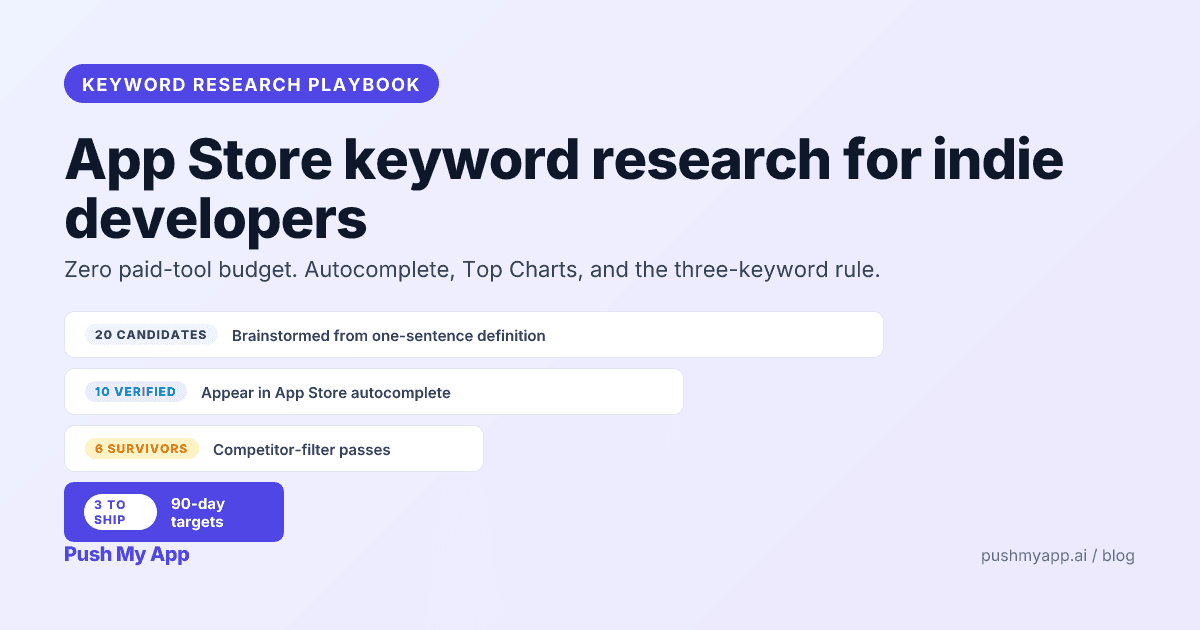
App Store Keyword Research: A Playbook for Indie Developers (2026)
Zero-budget keyword research that actually works in 2026 — autocomplete mining, competitor frequency maps, Apple Ads popularity as a free volume signal, and the three-keyword rule.
Read
Metadata & Keywords
App Store Release Notes That Drive Updates (What's New Best Practices)
How to write What's New copy that earns trust instead of wasting it — the iOS and Play field rules, a 3-part template, the auto-update reality, and localization for release notes.
Read
Metadata & Keywords
App Store Promotional Text: The 170-Character Evergreen Field
Promotional text is the only App Store field you can change without review. What it does, what Apple rejects under 2.3.1, a writing formula, worked examples, and how to test it in 2026.
Read